

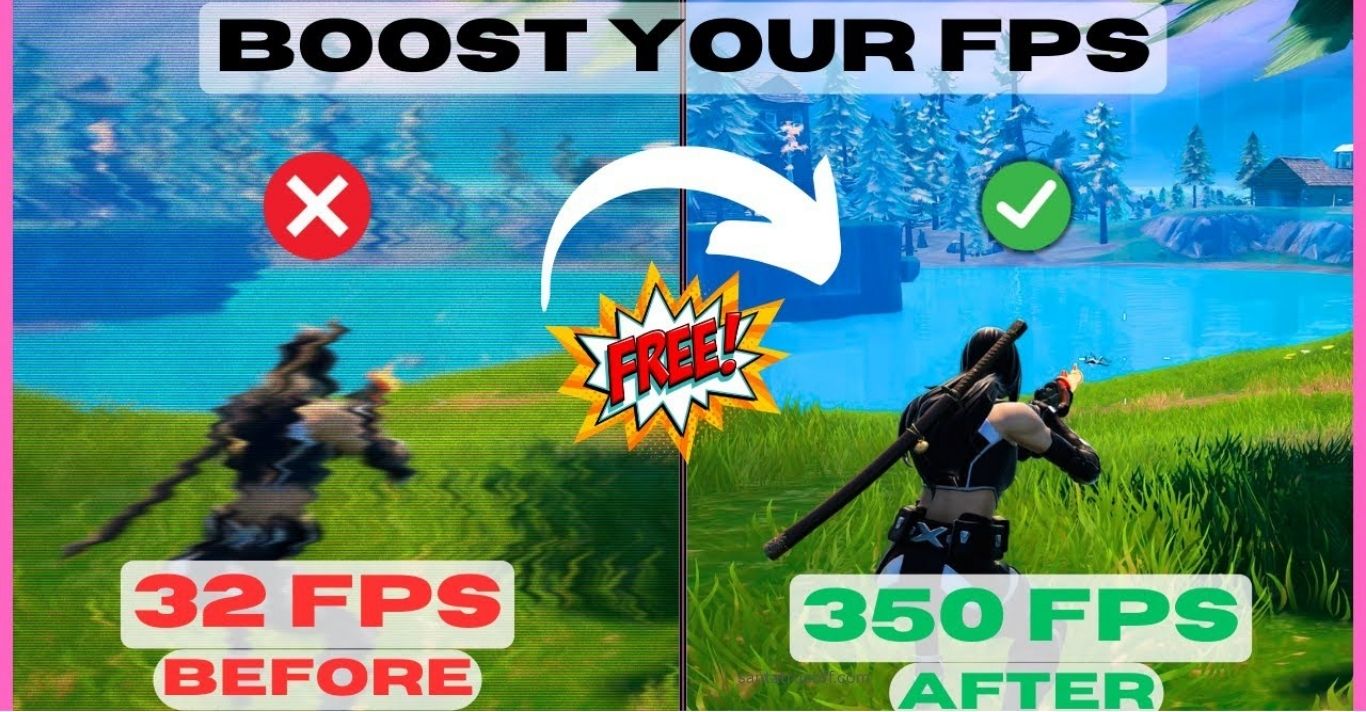
Gaming, smooth performance can make the difference between victory and defeat. Low frame rates (FPS) can hinder gameplay, causing lag, stuttering, and frustration. Whether you’re a casual gamer or a competitive esports player, increasing your FPS can dramatically enhance your gaming experience. This comprehensive FPS improvement guide will walk you through actionable strategies to boost your frame rates in any game.
Understanding FPS and Its Importance
Frames per second (FPS) measures how many individual images your system renders per second while playing a game. Higher FPS translates to smoother motion, quicker reactions, and a more enjoyable gaming experience. Most gamers aim for at least 60 FPS for smooth gameplay, while competitive players often target 120 FPS or higher for an edge in fast-paced games.Low FPS can occur due to several factors, including hardware limitations, outdated drivers, unoptimized game settings, or background software consuming resources. Understanding these factors is the first step in maximizing your system’s performance.
Optimize In-Game Settings for Higher FPS
Adjusting in-game settings is the easiest and most immediate way to increase FPS without spending money on hardware upgrades. Key settings to tweak include:
Lower Graphics Quality
Reducing graphics quality in games can significantly improve FPS. Focus on lowering settings like:
- Shadows
- Textures
- Anti-aliasing
- Reflections
Adjust Resolution
Playing at a lower resolution can drastically increase FPS, though it may slightly reduce visual fidelity. Some games offer a “dynamic resolution” option that balances performance and visuals automatically.
Turn Off V-Sync
While V-Sync eliminates screen tearing, it can introduce input lag and reduce FPS. Disabling it can improve performance, especially on high-refresh-rate monitors.
Enable Performance Mode
Many modern games offer a “performance” or “FPS boost” mode. Activating this mode prioritizes frame rate over graphics quality.
Update Your Hardware Drivers
Outdated drivers, particularly for your graphics card (GPU), can severely limit FPS. Regularly updating drivers ensures optimal compatibility and performance in the latest games.
GPU Driver Updates
- NVIDIA: Use GeForce Experience for automatic updates.
- AMD: Use Radeon Software Adrenalin for the latest drivers.
- Intel: Update through Intel Driver & Support Assistant.
Other Hardware Drivers
Don’t forget to update motherboard chipset drivers, CPU drivers, and even sound drivers, as they can indirectly affect system performance.
Upgrade Your Hardware for Maximum FPS
While software optimizations help, hardware sets the ultimate ceiling for FPS. Here’s what to consider:
Upgrade Your GPU
Your graphics card is the most critical component for gaming performance. Higher-tier GPUs render frames faster and handle demanding games with ease.
Improve Your CPU
Some games, especially simulation or strategy titles, are CPU-intensive. A faster processor with more cores can reduce bottlenecks and increase FPS.
Increase RAM
Insufficient RAM can cause stuttering or low FPS in modern games. Aim for at least 16GB for most games, with 32GB being ideal for demanding titles.
Switch to an SSD
Installing games on a solid-state drive (SSD) can reduce loading times and minimize stuttering caused by slow hard drives.
Optimize System Performance
Beyond game settings and hardware, optimizing your operating system ensures your PC dedicates maximum resources to gaming.
Close Background Programs
Applications running in the background consume CPU, RAM, and GPU resources. Use Task Manager (Windows) or Activity Monitor (Mac) to close unnecessary programs before gaming.
Disable Startup Programs
Many programs launch automatically with Windows, slowing down system performance. Disable them to free up resources.
Optimize Power Settings
Set your PC to “High Performance” mode to prevent Windows from throttling CPU and GPU speeds for energy efficiency.
Monitor Temperature
Overheating components can throttle performance. Keep your system cool using proper ventilation, fans, or even liquid cooling solutions.
Use Game Boosting Software
Game boosters can help optimize your PC’s performance for gaming. They typically work by:
- Freeing up RAM
- Closing unnecessary background processes
- Prioritizing game processes
Some popular options include Razer Cortex, Wise Game Booster, and MSI Afterburner (also great for overclocking).
Overclock Your GPU and CPU (Advanced)
Overclocking increases your hardware’s clock speed beyond its factory settings, resulting in higher FPS. While effective, it comes with risks like overheating or system instability. Always follow manufacturer guidelines and monitor temperatures carefully when overclocking.
Keep Your Game and System Updated
Game developers often release patches that optimize performance and fix bugs that may cause FPS drops. Similarly, keeping your operating system updated ensures compatibility with the latest games and hardware.
Reduce Network Lag (Optional for Online Games)
Although FPS is hardware-related, network issues can make gameplay feel choppy in online games. Ensure:
- Stable internet connection
- Low ping servers
- Wired Ethernet connection instead of Wi-Fi if possible
Frequently Asked Questions
Can FPS be improved without upgrading hardware
Yes, optimizing in-game settings, updating drivers, and closing background programs can significantly boost FPS
Does higher FPS damage hardware
No, higher FPS itself does not harm hardware but overclocking and poor cooling may increase temperature and wear
Which in-game settings affect FPS the most
Shadows, textures, anti-aliasing, and resolution are the primary settings that impact FPS
How often should I update my GPU drivers
It is recommended to update GPU drivers regularly, especially when new games are released or patches are available
Will using an SSD improve FPS
While SSDs mainly reduce loading times, they can also reduce stuttering in games that stream assets dynamically
Conclusion
Boosting FPS in any game is achievable through a combination of in-game settings optimization, hardware upgrades, and system performance improvements. By lowering graphics settings, updating drivers, managing background processes, and considering hardware enhancements like a better GPU, CPU, or SSD, gamers can enjoy smoother gameplay and reduced lag. Higher FPS not only improves visual fluidity but also enhances reaction times, giving a competitive edge in fast-paced games. Implementing these strategies ensures a more immersive and enjoyable gaming experience for casual and competitive players alike
